The search bar is built to work like Google. For most searches, you just type words and press Enter. The rest is optional knowledge for when you want finer control.
The Short Version (If You Only Remember One Thing)
Type words separated by spaces.
Put "phrases in quotes" for exact matches.
Type OR between words to match either.
With Exclude keywords search - You don't need a minus sign
That's 99% of what anyone ever needs.
The Basics
One word
Just type it. You'll get every document that contains that word (or its variations - see "What's Automatic" below).
benzene → finds every document mentioning benzene.
Multiple words
Type them separated by spaces. The search requires all of the words to appear somewhere in the document.
benzene contamination soil → finds documents that contain all three words.
You don't need to type AND between them - it's automatic. Typing benzene AND contamination is exactly the same as benzene contamination.
Exact Phrases
Wrap words in double quotes to require that those words appear right next to each other, in that order.
"dry cleaner" → only finds documents where "dry" is immediately followed by "cleaner".
Without quotes, the search finds both words anywhere in the document - potentially far apart:
dry cleaner (no quotes) → might return a document mentioning "dry summer" on page 3 and "steam cleaner" on page 17.
Use quotes when the phrase matters: "phase I assessment", "no further action", "remediation action plan".
Alternatives (Either/Or)
Type OR between words or phrases to find documents containing either one. OR must be in UPPERCASE.
benzene OR lead → documents mentioning benzene OR documents mentioning lead (or both).
"gas station" OR "dry cleaner" → documents mentioning either phrase.
Mixing OR with other words - repeat shared terms
When you mix OR with other space-separated words, AND binds tighter than OR. The search engine groups word-pairs first, alternatives second. So this query:
contamination soil OR groundwater → reads as (contamination AND soil) OR groundwater.
That returns documents with both "contamination" and "soil", or documents with "groundwater" alone (no contamination required) - probably not what you wanted.
To say "contamination, in either soil or groundwater," repeat the shared term on both sides of the OR:
contamination soil OR contamination groundwater → documents with contamination AND soil, OR documents with contamination AND groundwater.
If you type or in lowercase, it's treated as a regular word, not as an operator.
Excluding Words
Use the Exclude keywords field below the main search box to remove documents containing certain words from your results. You do not need to type a minus sign - the field itself means "exclude these."
Main keyword: benzene
Exclude keywords: draft
→ Finds documents mentioning benzene but NOT containing the word "draft".
You can exclude multiple words (space-separated) and exclude exact phrases with quotes:
Exclude keywords: draft "in progress"
→ Filters out documents containing either "draft" OR the exact phrase "in progress".
Why Excluding Matters (A Real Use Case)
Excluding words is one of the most powerful ways to find overlooked properties. Example:
Main keyword: benzene
Exclude keywords: remediated closed
This surfaces sites with benzene contamination that have NOT yet been remediated or closed - a potential "ghost" opportunity: contamination documented, work not yet done. Exactly the kind of edge case that general browsing misses.
Combining Everything
All the operators work together. A realistic complex search:
Main keyword: "petroleum hydrocarbons" remediation OR "diesel fuel" remediation
Exclude keywords: draft preliminary
Translates to: "documents mentioning either ('petroleum hydrocarbons' AND 'remediation') or ('diesel fuel' AND 'remediation'), AND NOT containing 'draft' or 'preliminary'."
Notice that remediation is repeated on both sides of the OR. That's the precedence rule from the "Alternatives" section above - without repeating it, "remediation" would only apply to one side.
For almost every real search, you'll use one or two operators at most. Don't over-engineer it.
What's Automatic (You Don't Need to Think About This)
These happen silently - knowing they exist helps you understand why you sometimes get unexpected matches.
Case doesn't matter
BENZENE, Benzene, and benzene all match the same documents. Type in whatever case feels natural.
Word stems are matched
Searching leak finds leak, leaks, leaking, leaked. Searching contaminate finds contamination, contaminated, contaminants. This is called "stemming" and almost always gives you the results you want - you don't need to search every variation of a word separately.
Common words are ignored
Words like the, of, is, at, by, a, an are treated as noise and stripped from your search. So "leak of benzene" effectively becomes "leak benzene". Rarely an issue in practice, but worth knowing if a quoted phrase seems to match more loosely than expected.
Numbers work
Zip codes, case IDs, years, and other numbers are all searchable:
90026 → finds documents mentioning zip code 90026 T0603700025 → finds documents mentioning that specific site ID
Special characters are safe
Hyphens, slashes, commas, parentheses, apostrophes - none of them break your search. Type queries like 1,1-DCE, o'reilly, or tank (closed) without worrying about escaping anything. The punctuation is treated as a word-separator, so tank (closed) is effectively the same as tank closed - the engine searches for both words anywhere in the document.
Quick Reference
What you want
What to type
One word
benzene
All of several words
benzene contamination soil
Exact phrase
"no further action"
Either A or B
benzene OR lead (UPPERCASE OR)
All of these, except that
Type keywords in the main box; type what to exclude in the Exclude box
Case-sensitive search
Not possible - search is always case-insensitive
Partial word match
Not needed - stemming handles word variations automatically
Example Searches for Common Tasks
Finding sites with specific contamination still open
Main: benzene
Exclude: closed completed "no further action"
Filter: Status → Open
Finding closure documents near your target area
Main: "no further action" OR "case closure"
Filter: County → (your county)
Filter: Document Type → NFA Letter
Finding recently filed site assessments
Main: "phase II" OR "site assessment"
Document Date: Last 12 months
Filter: County → (your county)
Finding LUST sites with gasoline contamination
Main: gasoline OR "petroleum hydrocarbons"
Filter: Case Type → LUST Cleanup Site
Finding chemical-specific contamination
Main: "trichloroethylene" OR TCE
Filter: Potential COC or Confirmed COC → Trichloroethylene
Tips for Better Results
Start broad, then narrow. If you get 10,000 results, add another keyword or a filter. If you get zero, remove a word.
Combine keywords and sidebar filters. Keyword search + date + document type usually gets you within 100 results of exactly what you want.
Use quotes for multi-word technical terms."dry cleaner", "phase I", "risk assessment" - quoting prevents unrelated matches.
Exclude words to find what OTHERS miss. Contamination mentioned + cleanup not mentioned = the interesting documents.
Remember stemming. You don't need to search contaminate AND contamination AND contaminated - one of them catches all three.
Filter Reference
Every filter available on the search page, what it does, and example values.
Source badges
Each filter applies to one or both of the underlying databases:
Both - filter works across GeoTracker and EnviroStor data
GT only - GeoTracker (California water-resource records)
ES only - EnviroStor (California toxic-substances records)
Filters that only apply to one source are automatically hidden when you select that source on the sidebar, or greyed-out if you've narrowed results to the other database.
Top-Bar Controls
The row above the results. These are the "core" filters you use on every search.
Filter
Source
What it does
Example values
Keywords
Both
Full-text search across 20M+ indexed PDF pages. Supports exact phrases in quotes and OR for alternatives. Words separated by spaces mean all must appear.
benzene contamination, "dry cleaner", lead OR arsenic
Exclude keywords
Both
Removes documents containing these words from your results. No - prefix needed - the field itself is negative.
draft, preliminary, "in progress"
Document Date
Both
Narrows to documents filed within a time window. Default is "Last 30 days" for fast partition-pruned queries.
Last 30 days, Last 12 months, Year to date, Date Range
County
Both
Which California county the site sits in. Required - this is the partition key that keeps searches fast. Default is "San Diego".
Los Angeles, San Diego, Orange, … (58 counties)
Sidebar Filters
Grouped by section heading on the left sidebar.
🗺️ Location
Filter
Source
What it does
Example values
Source
Both
Limit results to GeoTracker only, EnviroStor only, or both databases.
Both Sources, GeoTracker, EnviroStor
Site ID
Both
Exact match on the government-assigned site identifier.
T0603700025 (GT), 60001550 (ES)
Street Name
Both
Partial match on street name - useful if you're looking near a particular corridor.
Charter Way, Pacific Coast Hwy
Zip
Both
Starts-with match on ZIP code. Enter the first few digits to broaden the area.
94063, 90026
Site Name
Both
Partial match on the site's business/project name.
Pacific Gas Station, Lockheed
Assembly District
Both
California State Assembly district number. Helpful for legislative scoping.
1.Alturas, 2.Santa Rosa, 76.San Diego (80 total)
RWQCB Region
GT only
Regional Water Quality Control Board - California's 9 water-quality regions.
Los Angeles RWQCB (Region 4), San Diego RWQCB (Region 9)
📊 Site Status
Filter
Source
What it does
Example values
Status
Both
Current regulatory status of the site's cleanup case. Multi-select.
Open, Completed – Case Closed, Inactive
Claim Status
GT only
Status of the UST Cleanup Fund claim, for sites receiving state reimbursement.
Open, Paid, Closed
Status Date
Both
Filter to sites whose status changed in a given window. Presets or custom range.
Last 6 months, Last 12 months, Date Range
NFA Date
GT only
"No Further Action" date - when the site was formally closed for cleanup.
Last 12 months, Custom range
📄 Documents & Activities
Filter
Source
What it does
Example values
Document Type
Both
Category of the PDF (government-assigned).
Site Assessment Report, Work Plan, NFA Letter
Completed Date
ES only
When a regulatory activity was completed.
Last 12 months, Custom range
Due Date
ES only
When a scheduled activity is (or was) due.
Last 6 months, Custom range
Action Type
GT only
High-level category of regulatory action taken.
Enforcement, Remediation
Action
GT only
Specific regulatory action recorded.
Corrective Action Plan, Sampling
🏢 Site Classification
Filter
Source
What it does
Example values
Site Type
ES only
Top-level EnviroStor classification.
Cleanup, Military
Site Type Detailed
ES only
Finer-grained sub-classification.
Federal Superfund, State Response
Case Type
GT only
GeoTracker's case category (the regulatory program).
LUST Cleanup Site, SLIC
Acres
ES only
Size bucket of the site's acreage. Three values only.
Small (Less than 1), Medium (1-10), Large (Greater than 10)
Special Program
ES only
EnviroStor special-program flag.
Brownfields, Military
National Priorities List
ES only
Federal Superfund listing status.
Yes, No
Military/DOD
GT only
Whether the site is a military or Department of Defense property.
Yes, No
🧪 Environmental
Filter
Source
What it does
Example values
Potential COC
ES only
Contaminants potentially present at the site (per EnviroStor). Searchable by chemical name or code.
Benzene, Lead
Confirmed COC
ES only
Contaminants confirmed as present.
Benzene, Trichloroethylene
Contaminants of Concern
GT only
GeoTracker's contaminant list (free-text field).
Gasoline, Diesel
Potential Media Affected
ES only
Environmental media potentially affected by contamination.
Soil, Groundwater
Potential Media of Concern
GT only
GeoTracker's media-of-concern designation.
Soil, Groundwater
Discharge Source
GT only
What released the contaminant.
Tank, Pipe
Discharge Cause
GT only
Cause of the release.
Corrosion, Overfill
How Discovered
GT only
How the contamination was first identified.
Property Transfer, Tank Closure
Stop Method
GT only
How the discharge was stopped.
Tank Removal, Repair
Quantity Released
GT only
Estimated volume released, in three buckets.
Minor (up to 100 gal), Moderate (between 100 and 1,000 gal), Major (1,000 gal or more)
🏛 Agencies & People
Filter
Source
What it does
Example values
Lead Agency
Both
The primary regulatory agency handling the case.
DTSC, Local Agency
Local Agency
GT only
The local oversight agency (typically a county environmental health department).
San Diego County DEH, LA County Fire
Division Branch
ES only
DTSC internal division or branch handling the case.
Site Mitigation, Brownfields
Project Manager
ES only
Name of the EnviroStor project manager.
(individual agency staff names)
Supervisor
ES only
Name of the EnviroStor supervisor.
(individual agency staff names)
🌳 Land & Community
Filter
Source
What it does
Example values
Past Uses
ES only
Historical uses of the property.
Gas Station, Manufacturing
Restricted Use
ES only
Whether land-use restrictions are in place post-cleanup.
Yes, No
Site Mgmt Requirements
ES only
Ongoing obligations for the owner (e.g., monitoring, capping).
Deed Restriction, O&M Plan
Funding
ES only
Who paid for the cleanup.
Responsible Party, State
CalEnviroScreen
GT only
CalEnviroScreen 4.0 score - an environmental-justice indicator.
80-90%, 90-100%
Disadvantaged Community
GT only
Whether the site falls in a CalEnviroScreen-designated Disadvantaged Community.
Yes, No
Watershed
GT only
CalWater watershed name.
San Diego Bay, Los Angeles River
Groundwater Subbasin
GT only
DWR-designated groundwater subbasin.
San Diego, Sacramento Valley
Multi-select Filtering
Most dropdown filters support multi-select. You can type to filter the dropdown to matching values and then check several at once, or just scroll the dropdown and tick what you want.
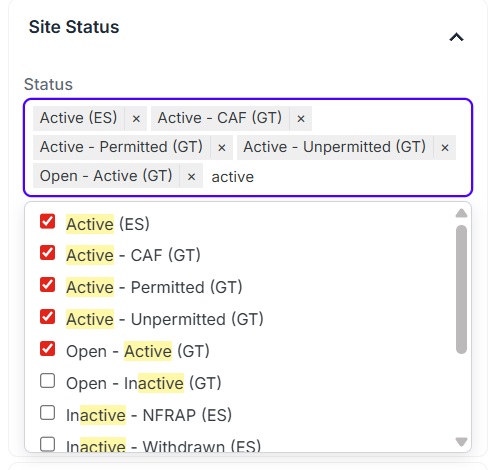
Example: typing "active" in the Status filter surfaces every Active-related label across both databases. Tick them all to capture sites listed under any of these labels.
Tips for Effective Filtering
Start narrow, widen as needed. Pick a county and a short date window first. Broaden if you get too few results, not the other way around.
Combine keyword + exclude for "ghost" opportunities. Example: search benzene with exclude remediated closed to find sites with contamination that haven't been resolved.
Document Type is your friend. Filtering by "NFA Letter" or "Work Plan" zeroes in on documents at specific regulatory milestones.
Save sites you care about - up to 50 favorites per account across documents and sites combined.
Winning Search Strategies
Use these strategies to spark your imagination - get creative. There are endless search combinations you could use to find exactly what you want.
How to Find "Zombie" Cleanups Before They Hit the Market
The Opportunity
Stalled cleanups indicate owners who have likely run out of capital.
These "Zombie" assets are invisible to traditional real estate filters.
Identify off-market deals where land value exceeds the remaining cleanup cost.
Keyword Recipe
Positive Keywordsinsolvent OR lien OR bankrupt OR "funding stalled" OR "financial hardship"Exclude Keywords"active remediation" "redevelopment plan"
Sidebar Filters
Status: Open - Inactive, Open - Remediation
Document Date: Older than 3 years (to find "stale" or abandoned cases).
The Result
Look for letters regarding a lack of progress or "Notice of Responsibility."
Identify correspondence confirming the owner cannot afford the next phase of work.
Bottom Line: Searching for financial distress inside PDFs turns a technical database into a distressed-asset lead generator.
Insight: Searching for "funding" keywords filters for the owner's bank account status rather than just the site's chemistry.
Unlocking "Hidden Closures": Finding Clean Land with "Open" Labels
The Opportunity
Government databases often have a 6–12 month lag between technical completion and official status updates.
Properties frequently remain labeled as "Open" in metadata even after clean-up is finished.
Discovering "Draft NFA" (No Further Action) letters inside document text allows you to find land priced as contaminated that is actually ready to build.
Keyword Recipe
Positive Keywords"Draft NFA" OR "Closure Request" OR "Case Closure Summary" OR "No Further Action recommended"Exclude Keywords"additional characterization required" "further monitoring"
Sidebar Filters
Status: Open (All categories)
Document Date: Within the last 12 months (to catch recent closure momentum).
The Result
Look for recommendations from the lead engineer or regulator suggesting the site meets closure criteria.
Use this lead time to negotiate acquisitions before the official "Closed" status alerts the broader market.
Bottom Line: Searching for closure intent inside documents lets you identify "clean" land months before the government updates the site status.
Insight: You are using the search bar to bypass administrative lag, turning a slow regulatory process into a high-speed arbitrage advantage.
Solar developers seek flat, disturbed land that requires zero excavation to avoid disturbing underlying soil.
Sites with asphalt or concrete "caps" are ideal for ballasted solar arrays that sit on the surface.
These properties are often "Closed" but carry heavy restrictions, keeping traditional residential developers away and lowering the price.
Keyword Recipe
Positive Keywords"asphalt cap" OR "engineered control" OR "ballasted solar" OR "capping requirement" OR no-digExclude Keywords"unrestricted use" "residential redevelopment"
Sidebar Filters
Status: Closed - Case Closure, Closed - Restrictive Covenant
The Result
Identify "Land Use Restrictions" where traditional foundations are prohibited.
Find site summaries where the state mandates the maintenance of a hard surface cover.
Bottom Line: Finding land with mandatory capping requirements creates a direct lead list for solar developers who specifically want "disturbed" soil they aren't allowed to dig.
Insight: Solar developers aren't looking for clean dirt; they are looking for stable, capped surfaces that regulators have already forbidden from being disturbed.
Automating the 10% IRA "Energy Community" Tax Bonus
The Opportunity
The Inflation Reduction Act (IRA) offers a 10% federal tax credit bonus for projects in "Energy Communities."
Developers must prove a site meets the technical regulatory definition of a "Brownfield" to qualify.
LandOpps allows you to search for the specific legal and technical language required to verify a site for this bonus.
Keyword Recipe
Positive Keywords"Brownfield designation" OR "Energy Community" OR "Inflation Reduction Act" OR 45Y OR "Census Tract"Exclude KeywordsResidential "unrestricted use"
Sidebar Filters
Status: Any (to find historical brownfield evidence).
The Result
Locate site assessment reports that explicitly mention the site's "Brownfield" status.
Identify the exact regulatory letters needed to fulfill tax-credit audit requirements.
Bottom Line: Use full-text search to instantly source the "proof of brownfield" documents required to unlock millions in federal tax bonuses.
Insight: Identifying tax-bonus eligibility turns environmental due diligence into a direct mechanism for increasing a project's internal rate of return.
The AB 1050 Flip: Finding Commercial Sites for Housing
The Opportunity
California's 2026 housing laws (AB 1050) allow for the conversion of commercial-only sites into residential developments.
Many sites are "Closed" with a covenant that restricts them to commercial use simply because that was the original intent, not because they are too contaminated for housing.
Identifying "Commercial-Only" sites with clean soil profiles allows you to find land ready for high-density residential infill that competitors still view as restricted.
Keyword Recipe
Positive Keywords"AB 1050" OR "residential conversion" OR covenant-stripping OR "commercial use only" OR "restrictive covenant"Exclude Keywords"unremediated soil" "active vapor intrusion"
Sidebar Filters
Status: Any status with a closed restrictive covenant
The Result
Look for "Land Use Covenants" or "Deed Restrictions" that specifically cite "Commercial Use" as the limit.
Review the final soil sampling tables in the Case Closure Summary to see if concentrations already meet residential thresholds.
Bottom Line: Use full-text search to identify commercial properties eligible for residential re-zoning under new California legislation before the wider market realizes the restriction can be removed.
Insight: AB 1050 turns "administrative restrictions" into "arbitrage opportunities" by allowing you to find land that is physically clean enough for housing but legally mislabeled.
The "State-Funded" Goldmine: Finding SCAP and EAR Leads
The Opportunity
California has specific funds like the Site Cleanup Subaccount Program (SCAP) and the Expedited Action Revenue (EAR) account.
Finding a site where the state has already allocated grant money means a developer can acquire land with the cleanup costs effectively pre-paid.
Most developers wait for these to be announced; you can find the approval letters inside the PDFs months earlier.
Keyword Recipe
Positive Keywords"SCAP funding" OR "EAR account" OR "Grant allocation" OR "State-funded cleanup" OR OSCAExclude Keywords"private funding" "responsible party funded"
Sidebar Filters
Status: Open - Remediation
The Result
Identify specific "Funding Commitment Letters" from the state.
Source sites where the "Responsible Party" is a municipality or small business that has already secured state dollars for the work.
Bottom Line: Finding sites with state-allocated cleanup funds allows you to acquire property where the largest financial risk is already mitigated by the government.
The Vapor Intrusion "Sensitive Use" Screen (Daycares & Schools)
The Opportunity
Vapor Intrusion (VI) is the "Silent Killer" of residential infill; if a site has VI issues, you cannot put a daycare or school there without massive mitigation.
Modern "Sensitive Use" restrictions are often buried in 500-page reports rather than site metadata.
Identifying these restrictions early prevents developers from overpaying for land that can only be used for parking or warehouses.
Keyword Recipe
Positive Keywords"Vapor Intrusion" OR "Sensitive Use" OR "Daycare restriction" OR "SSDS required" OR "Vapor barrier"Exclude Keywords"unrestricted use" "no mitigation required"
Sidebar Filters
Status: Any
The Result
Look for "Land Use Covenants" that specifically ban hospitals, schools, or daycares.
Identify technical requirements for "Active" sub-slab depressurization systems which have high ongoing O&M costs.
Bottom Line: Screening for "Sensitive Use" restrictions ensures you don't buy a residential development site that is legally restricted to industrial use.
Methane Zone Arbitrage: Passive vs. Active Mitigation
The Opportunity
In many California cities (like Los Angeles), "Methane Zones" require expensive mitigation systems for any new building.
There is a massive cost difference between a "Passive" system (cheap) and an "Active" system (expensive).
Identifying sites where previous tests suggest a "Level 1" or "Level 2" methane requirement allows you to outbid developers who are budgeting for the most expensive "Level 5" systems.
Keyword Recipe
Positive Keywords"Methane Zone" OR "Methane Buffer" OR "Passive System" OR "Active System" OR "Level 1" OR "Level 2"Exclude Keywords"Level 5" "high risk"
Locations to check
Los Angeles, Long Beach, or Huntington Beach (high methane areas).
The Result
Identify site reports that have already performed methane testing and found low concentrations.
Budget for lower construction costs based on existing data that isn't yet reflected in city zoning maps.
Bottom Line: Finding sites with proven low-level methane allows you to bid more aggressively on land where others are over-budgeting for mitigation.
The Migration Monitor: Protecting Your Land from Neighboring Threats
The Opportunity
Contamination does not respect property lines; groundwater and vapor plumes can migrate from neighboring sites onto your parcel.
Standard address-based searches only show records explicitly linked to your property, missing off-site hazards that are "encroaching."
Searching the internal text of regional reports allows you to identify "downgradient" threats before they impact your asset value or financing.
Keyword Recipe
Positive Keywords"plume migration" OR encroachment OR "off-site source" OR "groundwater gradient" OR cross-gradientExclude Keywords"on-site source" localized
Sidebar Filters
Location: Narrow results to your specific Zip Code.
Status: Open (to focus on active, moving contamination).
The Result
Look for maps in site reports showing plume contours that extend toward your parcel boundary.
Identify correspondence from regulators regarding "off-site impacts" or "downgradient monitoring" that mention your street or neighboring address.
Bottom Line: Text-searching the records of neighboring sites provides an early-warning system for underground threats that address-based due diligence completely misses.
Insight: By monitoring migration keywords across a regional data set, you turn static regulatory data into a proactive insurance policy for your land's future buildability.
Precedent Mapping: Using a Neighbor's Success to Win Your Case
The Opportunity
Regulators are bound by precedent; if a neighbor was allowed a specific variance or "low-threat" closure, you should be too.
Consultants usually only see their own files, but LandOpps lets you see exactly how a neighbor's consultant successfully argued for a "No Further Action" (NFA) letter.
Use their winning logic and technical arguments to fast-track your client's project.
Keyword Recipe
Positive KeywordsPrecedent OR "Variance granted" OR "Agency agreement" OR "Site-specific objective" OR "Alternative cleanup level"Exclude Keywords"standard protocol"
Sidebar Filters
Location: Filter by the specific Street of your subject site.
Status: Closed - Case Closure (to find the "winners").
The Result
Identify technical reports where the state accepted a higher-than-normal concentration of a chemical.
Copy the exact regulatory citations and logic used by the neighbor to secure your own project's approval.
Bottom Line: Searching neighboring success stories allows you to "copy-paste" the regulatory logic that has already proven successful in your specific area.
Modern utility maps are often incomplete, leading to "surprises" during excavation that cause massive delays and change orders.
Historical site assessments often include maps of abandoned sewer lines, fiber optic cables, or fuel pipes that are no longer on public records.
Identify these "ghost" utilities during the due diligence phase to provide more accurate construction bids.
Keyword Recipe
Positive Keywords"buried utility" OR easement OR "sewer line" OR "abandoned pipe" OR encroachment OR "fiber optic" OR "gas main"Exclude KeywordsProposed Planned
Sidebar Filters
Status: Any.
The Result
Find hand-drawn 1980s maps showing utility connections that have been paved over and forgotten.
Spot "utility interference" notes in old boring logs that warn of obstructions beneath the surface.
Bottom Line: Historical PDF maps often hold the only record of abandoned underground infrastructure that can derail a modern construction budget.
Dewatering Arbitrage: Predicting Construction Costs
The Opportunity
High groundwater levels require "dewatering" during construction, which can cost hundreds of thousands of dollars in permits and pumping.
Standard soil reports for a single site might only show current water levels, but historical records show how high those levels can fluctuate during wet seasons.
Search regional "Static Water Level" data to predict if your foundation will require expensive pumping and treatment before you buy the land.
Keyword Recipe
Positive Keywords"Static water level" OR "Dewatering plan" OR GPM OR "Pumping rate" OR "Depth to water" OR "Historical high"Exclude Keywords"soil vapor" "air monitoring"
Sidebar Filters
Status: Open or Closed.
Location: Filter by Zip Code.
The Result
Look for groundwater monitoring tables that show 20+ years of seasonal fluctuations.
Identify if neighboring sites required "disposal permits" for high volumes of water, signaling a costly dewatering environment for your project.
Bottom Line: Using regional groundwater history allows you to accurately budget for dewatering costs that standard "Phase I" reports often underestimate.
Environmental PMs spend 20+ hours manually building a "Site History" for Phase I Environmental Site Assessments.
They have to check for every historical use: dry cleaners, gas stations, chrome plating, etc.
Keyword-searching every document in a 2-mile radius instantly flags historical hazards that standard database radius searches often miss.
Keyword Recipe
Positive Keywords"Dry Cleaner" OR "Stoddard Solvent" OR Plating OR "Machine Shop" OR Pesticide OR ClarifierExclude KeywordsProposed Planned
Sidebar Filters
Location: Filter by Zip Code.
Document Date: All - to find the oldest possible mentions (remember that long dated searches can take up to a few minutes to complete, the site is searching every word in 2 million documents for you).
The Result
Instantly generate a list of every nearby site that ever mentioned high-risk historical industrial processes.
Cut report-writing time by 80% while providing a more accurate historical profile than your competitors.
Bottom Line: Using full-text search to build a site history allows PMs to deliver higher-quality Phase I reports in a fraction of the time.
Using Negative Search to check for a "Clean History"
The Opportunity
Lenders and buyers need to check if high-risk contaminants are mentioned in the regulatory record.
Standard government databases are unable to search for terms that are not present in a document's text.
LandOpps allows you to perform "defensive due diligence" by checking for the documented absence of specific risks across millions of pages.
Keyword Recipe
Positive Keywords"Report" OR "Assessment"Exclude KeywordsPFAS TCE Perchlorate "Hexavalent Chromium"
Sidebar Filters
Site ID: Enter the specific Global ID or EnviroStor ID for the subject property.
Document Date: All time - to ensure the entire 30+ year history is scanned. (remember that long dated searches can take up to a few minutes to complete, the site is searching every word in 2 million documents for you).
The Result
A result count of "Zero" for these chemicals across the entire parsed record increases confidence in the risk profile.
This indicates that specific "Environmental Killers" have not been documented in any historically parsed PDF.
Bottom Line: Negative searching enables you to check the documented absence of high-risk contaminants in the site's history.
Finding Fire Sales Through "Legal Entanglement" Searches
The Opportunity
Owners in active litigation often need to liquidate land assets quickly to cover legal fees or settlements.
Legal pressure creates off-market "fire sale" conditions before the property is officially listed for sale.
Regulatory records capture "Consent Decrees" and "Administrative Orders" that signal high levels of owner distress.
Keyword Recipe
Positive KeywordsLawsuit OR Litigation OR "Consent Decree" OR "Administrative Order" OR "Attorney fees"Exclude Keywords"routine sampling" "annual report"
PFAS contamination (from firefighting foam) is a massive emerging liability, but the cost can often be shifted to the foam manufacturers (like 3M or DuPont).
To shift liability, you must prove which brand of foam was used at a site decades ago.
Search historical fire-training records and spill reports for specific brand names or product codes to move the cleanup bill off your client's balance sheet.
Keyword Recipe
Positive KeywordsAFFF OR "Firefighting foam" OR 3M OR DuPont OR "Light Water" OR Chemguard OR "Fire training"Exclude Keywords"routine monitoring" non-detect
Sidebar Filters
Status: Open (active PFAS cases).
Document Date: Older than 10 years (to find legacy usage).
The Result
Locate internal memos or invoices from the 1990s mentioning a specific firefighting foam product.
Use this "brand-name evidence" to join multi-district litigation and seek cleanup reimbursement from the manufacturer.
Bottom Line: Finding a single brand name in a 25-year-old PDF can shift millions of dollars in PFAS cleanup liability from the landowner to the manufacturer.
Liability Chain Archeology: Finding Large Corporation Successors
The Opportunity
When a contaminated site is found, the current owner is on the hook - unless they can find the "Successor" to the original polluter.
Large corporations often hide behind defunct subsidiary names from the 1960s and 70s.
Identifying a parent company name in an old letterhead allows an attorney to shift millions in cleanup liability to the correct large corporation.
Keyword Recipe
Positive KeywordsSuccessor OR Predecessor OR "Acquired by" OR "Formerly known as" OR "Parent company"Exclude KeywordsLLC "sole proprietor"
Sidebar Filters
Document Date: Older than 30 years - to find original corporate identities. (remember that long dated searches can take up to a few minutes to complete, the site is searching every word in 2 million documents for you).
The Result
Find 1980s correspondence where a major corporation acknowledges they bought the assets of the "Responsible Party."
Use this paper trail to bring well-funded entities back to the table for cost-sharing.
Bottom Line: One old letterhead showing a corporate acquisition can shift a $2M cleanup bill from your client to a Fortune 500 company.
Hunting "Ghost" Liabilities in Historical 1970s Records
The Opportunity
Properties currently listed as "Inactive" or "No Action Required" often harbor forgotten hazards from the 1970s and 80s.
Modern metadata filters miss these "ghost" liabilities because the original records were never digitized into searchable database fields.
Uncovering these legacy risks - like leaking underground storage tanks (USTs) - before purchase prevents you from inheriting massive, unbudgeted cleanup costs.
Keyword Recipe
Positive KeywordsUST OR "leaking tank" OR "historic gas station" OR "buried drum" OR "fuel oil" OR 1970s OR 1980sExclude Keywords"tank removed" "certified closure" NFA
Sidebar Filters
Status: Inactive, No Action Required, Completed - Case Closed
The Result
Identify site assessments from 30+ years ago that note tanks were "abandoned in place" rather than removed.
Locate "suspected" hazards mentioned in historical typewritten reports that were never officially investigated or cleared.
Bottom Line: Historical text search allows you to identify dormant financial risks that modern database filters completely overlook.
Insight: Finding a "forgotten" tank in a 1985 PDF is the difference between a profitable development and a multi-million dollar liability.
Each term is tagged by source: EnviroStor Dept. of Toxic Substance Control (DTSC), GeoTracker State Water Board, Both appears in both systems.
Jump to a letter
A
Acres EnviroStor
The approximate size of the facility/site in acres. One acre of land equals 43,560 square feet (4,840 square yards) or about 1 football field.
Action GeoTracker
The specific regulatory or field task performed at a site, such as an inspection, a public meeting, or the issuance of an enforcement order.
Action Type GeoTracker
The type of Regulatory Action (Enforcement, Response, Remediation, Other).
Activity EnviroStor
A document related to a significant event or part of an evaluation, investigation, cleanup, permitting action, closure, or post-closure.
Administrative Action EnviroStor
DTSC has statutory authority to take administrative actions to order correction of violations and to impose penalties.
AFFF (Aqueous Film-Forming Foam) Both
A firefighting foam containing PFAS chemicals that often results in persistent environmental contamination.
Air Sparging Both
Injecting air into groundwater to strip volatile contaminants and enhance aerobic biodegradation.
Area Name and Description EnviroStor
Facilities or sites tracked in EnviroStor may be divided into smaller portions called "areas" or further into "sub-areas" to address smaller sections of a site. An area is a discrete portion of a site with its own activities that may address geographical portions of a site, specific site problems, or phases of a site. Area Name refers to the name of an area or sub-area, and Description provides a general description of an area or sub-area.
Assembly District EnviroStor
The State of California Assembly District where the facility/site is located. Some facilities/sites may be located in multiple assembly districts. For information on your legislative district, use the following link: http://assembly.ca.gov.
Assessor's Parcel Number (APN) EnviroStor
APNs are assigned by county recorders' offices; an APN is a series of numbers and letters, the sequence of which is determined by each county. External sources provide APNs to the Department of Toxic Substances Control (DTSC) and cannot make any assurance regarding their accuracy. APNs may change over time and DTSC is not notified when an APN changes; therefore, APN information is only reflective of the point of entry.
AST (Above-Ground Storage Tank) Both
A storage tank located above the ground surface, often used for petroleum or hazardous materials.
Attorney General (AG) EnviroStor
Attorney General of the State of California who acts as DTSC's attorney in civil actions.
B
BCP (Brownfields Cleanup Program) Both
A state program providing incentives for the cleanup and redevelopment of contaminated urban properties.
Begin Date GeoTracker
The date the case began – a blank date indicates that the begin date is unknown.
Bioremediation Both
The use of microorganisms to degrade or neutralize contaminants in soil or water.
Branch EnviroStor
The Cleanup Program branch within DTSC that is responsible for overseeing the facility/site.
Brownfields EnviroStor
Brownfields are real property, the expansion, redevelopment, or reuse of which may be complicated by the presence or potential presence of a hazardous substance or waste, pollutant, or contaminant. In the EnviroStor database, brownfields are designated as a facility or site, or portion thereof, of industrial or commercial property that is abandoned or underused, and often environmentally contaminated - especially one considered as a potential site for redevelopment or other reuse.
BTEX Both
A specific group of volatile organic compounds - Benzene, Toluene, Ethylbenzene, and Xylene - commonly associated with fuel.
Business Name GeoTracker
The facility name of the site. Used in both the Permitted UST data download and the Public Data download.
BZP (Border Zone Property) Both
A property located within 2,000 feet of a hazardous waste site, subject to specific land-use restrictions.
C
CalEnviroScreen Score Both
The CalEnviroScreen Score is a percentile rank given to each California Census Tract in relation to the rest of California based on potential exposures to pollutants, adverse environmental conditions, socioeconomic factors and prevalence of certain health conditions. This data is provided by the Office of Environmental Health Hazard Assessment (OEHHA). For more information on the CalEnviroScreen Score and how it is calculated, please go to www.oehha.ca.gov. Both the 3.0 and 4.0 percentile versions are tracked in the GeoTracker data.
CalEPA EnviroStor
California Environmental Protection Agency.
California Environmental Quality Act (CEQA) EnviroStor
The California Environmental Quality Act (CEQA) was enacted in 1970; it requires state and local agencies to identify the significant environmental impacts of their actions to the environment and to avoid or mitigate those impacts, if feasible.
CalWater Watershed Name GeoTracker
The official designation for the hydrologic region where the site is located, used to identify which local water bodies may be impacted by a release.
CAO (Cleanup and Abatement Order) Both
An enforcement action issued by a Water Board requiring a responsible party to clean up waste or abate its effects on water quality.
CAP (Corrective Action Plan) Both
A document, most common in GeoTracker LUST cases, that details the proposed strategy and methods for cleaning up environmental contamination.
Capping Both
The placement of an impermeable layer over contaminated areas to prevent exposure or water infiltration.
Case Manager GeoTracker
The name of the lead agency case manager for the site.
Case Type GeoTracker
The regulatory classification of a project based on the primary source of contamination, such as Leaking Underground Storage Tanks (LUST) or non-tank Spills, Leaks, Investigations, and Cleanups (SLIC).
Caseworker Both
The specific regulatory official assigned to oversee the progress and compliance of a site case.
CDO (Cease and Desist Order) Both
A formal regulatory order directing a party to stop a specific activity that is in violation of environmental requirements or permits.
Census Tract EnviroStor
Small, relatively permanent statistical subdivisions of a county that are updated by local participants prior to each decennial census as part of the Census Bureau's Participant Statistical Areas Program.
CERS ID GeoTracker
Identifier assigned by the California Environmental Reporting System (CERS).
Certified Unified Program Agency (CUPA) EnviroStor
An agency certified by CalEPA to implement the Unified Program, which consists of hazardous waste generator and onsite treatment programs, aboveground and underground storage tank programs, hazardous materials management and business plans and inventory statements, and the risk management and prevention program. (The CUPA is generally a part of the county or city Fire Department or Environmental Health Department.)
CGL (Comprehensive General Liability) Both
A type of insurance policy often investigated to recover costs for historical environmental cleanup.
Civil Action EnviroStor
DTSC will pursue civil actions through referrals to the Attorney General based on facts of the particular case and severity of violations.
Claim Number GeoTracker
A comma separated list of Cleanup Fund SCUFIIS Claim Numbers.
Claim Status GeoTracker
A comma separated list of Cleanup Fund SCUFIIS Claim Statuses.
Class 1 Modification EnviroStor
Minor modification(s) to an existing hazardous waste facility permit, generally administrative changes. Requires prior notification to DTSC. Some specified Class 1 modifications also require DTSC prior approval (Class 1* modification).
Class 2 Modification EnviroStor
Modification(s) to an existing hazardous waste facility permit, generally applicable to changes necessary to respond to common variations in types and quantities of wastes or technological advances/changes to comply with new regulations.
Class 3 Modification EnviroStor
Major modification(s) to an existing hazardous waste facility permit to substantially alter the facility or its operations.
Cleanup Oversight Agencies EnviroStor
A list of the primary regulatory agencies responsible for the remediation activities at a facility/site. This list includes the "lead" regulatory agency (the agency with primary oversight responsibility) and any other primary supporting local, state, or federal regulatory agencies.
Cleanup Status EnviroStor
Identifies DTSC's current involvement at a facility/site undergoing investigation and/or cleanup. This listing may also indicate that a facility/site has been referred to another regulatory agency and is no longer under the oversight of DTSC.
Active: Identifies that an investigation and/or remediation is currently in progress and that DTSC is actively involved, either in a lead or support capacity.
Backlog: Identifies non-active sites which DTSC is not currently investigating or remediating. These sites generally become active when staff and/or financial resources are available. Priorities for placing a site on backlog status versus active are based on the degree of long-term threat posed by the property. Before placing a property on backlog status, DTSC considers whether interim actions are necessary to protect the public and the environment from any immediate hazard posed by the property. Often there are no parties available to fund the full cleanup of these properties.
Border Zone/Haz Waste Property (BZP/HWP): Identifies properties that went through the Border Zone Property or Hazardous Waste Property process of evaluation. Potential Border Zone properties are located within 2,000 feet of a significant disposal of hazardous waste; Hazardous Waste Property facilities/sites have a significant disposal of hazardous waste.
Certified: Identifies completed sites with previously confirmed release that are subsequently certified by DTSC as having been remediated satisfactorily under DTSC oversight.
Certified O & M – Land Use Restriction Only: Identifies sites where a remedy is implemented and the selected remedy results in hazardous substances remaining at the site at concentrations above those acceptable for unrestricted use and a Land Use Restriction or Land Use Covenant has been recorded for the site.
Certified Operations & Maintenance: Identifies sites that have certified cleanups in place but require ongoing Operation and Maintenance (O&M) activities. The Certified O&M status designation means that all planned activities necessary to address the contamination problems have been implemented. However, some of these remedial activities (such as pumping and treating contaminated groundwater) must be continued for many years before complete cleanup will be achieved. Prior to the Certified O&M designation, all institutional controls (e.g., land use restrictions) that are necessary to protect public health must be in place.
Hazardous Waste Disposal Land Use (NOT BZP/HWP): Identifies facilities/sites that went through the Border Zone Property (BZP) or Hazardous Waste Property (HWP) process and entered into voluntary deed restrictions but were not formally designated as either a "Border Zone" or "Hazardous Waste Property".
Inactive – Action Required: Identifies non-active sites where, through a Preliminary Endangerment Assessment (PEA) or other evaluation, DTSC has determined that a removal or remedial action or further extensive investigation is required.
Inactive – Needs Evaluation: Identifies non-active sites where DTSC has determined a PEA or other evaluation is required.
No Action Required: Identifies sites where a Phase I Environmental Assessment was completed and resulted in a no action required determination.
No Further Action: Identifies completed sites where DTSC determined after investigation, generally a PEA (an initial assessment), that the property does not pose a problem to public health or the environment.
Referred: 1248 Local Agency: Identifies sites that were referred to a local agency (through the SB 1248 determination process) to supervise the cleanup of a simple waste release.
Referred: EPA: Identifies sites that, based on limited information available to DTSC, appear to be more appropriately addressed by the United States Environmental Protection Agency (U.S. EPA).
Referred: IWMB: Identifies sites that, based on limited information available to DTSC, appear to be more appropriately addressed by the California Integrated Waste Management Board (IWMB).
Referred: Other Agency: Identifies sites that, based on limited information available to DTSC, appear to be more appropriately addressed by another state or local environmental regulatory agency.
Referred: RCRA: Identifies sites that, based on limited information available to DTSC, appear to be more appropriately addressed by DTSC's Hazardous Waste Management Program and are identified as Resource Conservation and Recovery Act (RCRA).
Referred: RWQCB: Identifies sites that, based on limited information available to DTSC, appear to be more appropriately addressed by the California Regional Water Quality Control Boards (RWQCBs).
Referred: SMBRP: Identifies facilities undergoing corrective action that were transferred from DTSC's Hazardous Waste Management Program to DTSC's Site Mitigation and Brownfield Reuse Program (SMBRP) for cleanup and/or closure.
Closure EnviroStor
The act of closing a hazardous waste management facility or hazardous waste management unit pursuant to the requirements of chapters 14 and 15 of California Code of Regulations, Title 22, Division 4.5. In California, all hazardous waste Treatment, Storage, Disposal or Transfer Facilities (TSDTFs) are required to prepare and submit closure plans.
Closure Letter Both
An official document certifying that a site has met all regulatory requirements for cleanup.
COC (Contaminant of Concern) Both
Specific chemicals identified at a site that require investigation or cleanup due to health risks.
Commercial Offsite Facility EnviroStor
A commercial hazardous waste permitted Recycling, Treatment, Storage, and Disposal Facility (TSDF) that accepts offsite waste for a fee and performs treatment and/or disposal at the facility.
Comments EnviroStor
Statements or information provided by the Project Manager about a completed activity.
Community Involvement EnviroStor
Also referred to as public participation, community involvement provides opportunities for the public to get involved with a facility's permit application or a contaminated site's cleanup process. The Community Involvement section of EnviroStor includes draft documents available for review, public notice documents and fact sheets.
Complaint EnviroStor
Information received by DTSC alleging violations of the law or a threat to public health and safety or the environment.
Complaint Investigation EnviroStor
The process of accumulating and evaluating information to assess the allegations made in a complaint. It is an unscheduled activity initiated by an allegation of non-compliance.
Completed Activities EnviroStor
Completed documents or facility/site activities.
Comprehensive Environmental Response, Compensation, and Liability Act (CERCLA) EnviroStor
CERCLA, commonly known as Superfund, was enacted by Congress on December 11, 1980. This law created a tax on the chemical and petroleum industries. It provided broad Federal authority to respond directly to releases or threatened releases of hazardous substances that may endanger public health or the environment. CERCLA established prohibitions and requirements concerning closed and abandoned hazardous waste sites; provided for liability of persons responsible for releases of hazardous wastes at these sites; and established a trust fund to provide for cleanup when no responsible party could be identified. CERCLA was amended by the Superfund Amendments and Reauthorization Act (SARA) on October 17, 1986.
Congressional District EnviroStor
The State of California Congressional District where the Facility/Site is located. Some facilities/sites may be located in multiple congressional districts.
Contact Name GeoTracker
The individual officially designated as the primary representative for the lead regulatory agency or the party responsible for the cleanup.
Contact Type GeoTracker
The organizational role of the listed contact, distinguishing between Regional Board staff, local health officials, or private property owners.
Coordinate Source GeoTracker
The specific method or entity used to determine the site's latitude and longitude, such as GPS measurement, address geocoding, or historical survey data.
Corrective Action EnviroStor
Investigation and cleanup activities at hazardous waste facilities (either Resource Conservation and Recovery Act (RCRA) or State-only) that either were eligible for a permit or received a permit are called "corrective actions." These facilities treated, stored, disposed and/or transferred hazardous waste.
The CMI is the last phase of the corrective action process; the remedy is designed and implemented. This phase follows the selection of remedy and approval of permit modification or order amendment. The modified permit or amended order should include conditions that specify how the corrective measures are to be implemented.
Corrective Measures Study (CMS) EnviroStor
The general objective of the CMS is to develop and evaluate corrective measure alternative(s) that may be utilized at the facility to address releases of hazardous wastes or constituents from Solid Waste Management Units, Areas of Concern, and other source areas at the facility. The CMS is analogous to the Feasibility Study conducted pursuant to the Comprehensive Environmental Response, Compensation, and Liability Act (CERCLA) or State Superfund laws.
Cortese List EnviroStor
The Hazardous Waste and Substances (Cortese) List is a planning document used by the state, local agencies and developers to comply with the California Environmental Quality Act (CEQA) requirements in providing information about the location of hazardous materials release facilities/sites. Government Code section 65962.5 requires the California Environmental Protection Agency (Cal/EPA) to develop at least annually an updated Cortese List. DTSC is responsible for a portion of the information contained in the Cortese List. Other state and local government agencies are required to provide additional hazardous material release information for the Cortese List. Please refer to the California Environmental Protection Agency's Cortese web pages for more information.
Criminal Action EnviroStor
Provides the strongest punishment and greatest deterrent against unlawful conduct that harms or poses a threat of serious harm to public health or safety or the environment. These actions are referred to a specific District Attorney or City Attorney, Circuit Prosecutor, or United States Attorney.
CSM (Conceptual Site Model) Both
A written or graphical representation of a site that identifies contamination sources, migration pathways, and potential human or environmental receptors.
CUF (Cleanup Fund) Both
The common industry shorthand for the Underground Storage Tank Cleanup Fund, which provides financial reimbursement for eligible petroleum cleanup costs.
D
Date Completed EnviroStor
The calendar date when an activity is completed. This date is usually the final approval/concurrence letter or signature date and is not necessarily associated with the date the work is completed.
Deed Restriction Both
A legal encumbrance recorded on a property title that limits land use due to remaining contamination.
DEH (Department of Environmental Health) Both
A county-level department often acting as the local regulatory lead for environmental cases.
Dewatering Both
The process of removing groundwater from an excavation site to allow for construction or remediation.
Disadvantaged Community GeoTracker
Disadvantaged Community Designation.
Discharge Cause GeoTracker
The cause of the discharge.
Discharge Source GeoTracker
The source of the discharge.
Document Type EnviroStor
A DTSC standardized name used to identify documents developed during the evaluation, investigation, permitting, closure, post-closure and remediation of facilities/sites. These documents may also include environmental analysis documents developed in support of DTSC's statutory responsibilities under the California Environmental Quality Act (CEQA). For example: agreements, orders, decisions, permits, closure plans, cleanup plans and reports, public outreach, and land use restriction documents may be included.
DTSC EnviroStor
Department of Toxic Substances Control.
Due Date EnviroStor
The calendar date/year that staff expect to complete the particular activity.
DWR Groundwater Sub-Basin Name GeoTracker
DWR Groundwater Sub-Basin Name.
E
E-Waste Facility EnviroStor
A facility that is approved to handle or recycle electronic waste (E-Waste), which includes unwanted electronic devices and Cathode Ray Tube (CRT) panels.
Easement Both
A legal right allowing a party to access another's land for environmental monitoring or remediation.
Electronic Submittal of Information (ESI) EnviroStor
The secure portal on the EnviroStor Public Website that provides the ability for electronic submissions of environmental reports and data in order to comply with regulations, directives, and/or orders issued by DTSC.
Emergency Permit EnviroStor
A permit issued in accordance with section 66270.61 California Code of Regulations, Title 22, Division 4.5. Emergency permits are temporarily issued when DTSC determines that a situation represents an imminent and substantial endangerment to human health or the environment. They may be issued to a non-permitted or permitted facility to allow treatment, storage, disposal or transfer of hazardous waste. The duration of the emergency permit cannot exceed 90 days.
Enforcement Action EnviroStor
An action that mandates compliance and initiates an administrative, civil, or criminal process that results in an enforceable agreement or order.
Consent Order with Enforcement and Settlement – Federal CA/FO: Document signed by both DTSC and an entity to settle violations which may include a compliance schedule and payment of penalties.
Enforcement Order: Document issued to an entity which specifies the violations, compliance actions, and assessed penalties.
Final Administrative Settlement: Document signed by both DTSC and an entity to settle violations identified in the Enforcement Order. Sets forth a compliance schedule and payment of penalties.
Final Civil/Judicial Action: Action taken by the court to settle a civil complaint filed against an entity.
Initial Civil Filing AG: Action taken by Attorney General's Office filing a civil complaint against an entity with the court.
Injunctive Relief: An order granted by the court to prohibit an act by a person or an entity and is argued before a judge in a hearing.
Inspection Report: A written report documenting the inspection.
Permanent Restraining Order: An order issued by a judge to permanently stop activities when those activities pose immediate irreparable harm to the public or the environment.
Quarantine Order: An administrative order in which the facility or entity is directed to not touch or move potential evidence on the site such as drums or containers for a length of time.
Revocation of Transporter Accusation: Document used to proceed with the revocation of a transporter's registration.
Summary of Observations (SOO): Document issued at the end of an inspection or under specified circumstances during a complaint investigation site visit when a violation has not been detected. Additional issues that require further investigation are also documented in the SOO.
Summary of Violations/Notice to Comply (SOV/NTC): Document issued at the end of an inspection or under specified circumstances during a complaint investigation site visit when a violation has been detected. Additional issues that require further investigation are also documented in the SOV. It may trigger the start of the Enforcement Process.
Temporary Restraining Order: An order issued by a judge to stop activities for a limited time period when those activities pose immediate irreparable harm to the public or the environment.
Transporter Revocation Finalized: Document finalizing the revocation of a transporters registration to haul hazardous waste.
Enforcement Status EnviroStor
The current enforcement status of a facility.
No Action: No violation found as a result of an inspection.
Out of Compliance: As a result of an inspection, a facility is found to be in violation of Hazardous Waste regulations and has not corrected the violation.
Significant Non-Complier (SNC): A significant non-complier is a chronic or recalcitrant violator; or a handler who substantially deviates from the terms of a permit, order, settlement agreement or decree by not meeting requirements in a timely manner and/or by failing to perform work as required by terms of permits, orders, settlement agreements or decrees; or substantially deviates from statutory or regulatory requirements.
Entire Facility EnviroStor
All contiguous land and structures, other appurtenances, and improvements on the land used for the treatment, transfer, storage, resource recovery, disposal, or recycling of hazardous waste.
Environmental Protection Agency (EPA) Identification Number (EPA ID #) EnviroStor
The Resource Conservation and Recovery Act (RCRA) requires individuals who generate or transport hazardous waste, or who operate a facility/site for recycling, treating, storing, or disposing (TSD) of hazardous waste, to notify U.S. EPA or their authorized state waste management agency of their regulated waste activities and obtain a U.S. EPA Identification (ID) Number (also known as a RCRA ID Number). Note: Most hazardous waste falls into two types in California: waste regulated under the federal Resource Conservation and Recovery Act is known as "RCRA waste;" waste regulated by California law alone is known as "non-RCRA" or "California-only" waste. All hazardous waste (RCRA and non-RCRA) in California is regulated under state statutes and regulations. DTSC issues California ID Numbers for generators, transporters, and treatment, storage, disposal and transfer facilities that handle hazardous wastes not regulated under RCRA.
EnviroStor ID Number EnviroStor
A unique identifier assigned to each site/facility in the EnviroStor system.
EPA Region GeoTracker
The EPA region of the facility / site.
Export to Excel EnviroStor
EnviroStor provides the option to export all search results, when viewed on a list, to a Microsoft Excel spreadsheet.
F
Facility EnviroStor
Regulated site or business entity. For example: a hazardous waste cleanup site, a generator, a transporter, a Treatment, Storage, Disposal or Transfer Station (TSDTF), an electronic-waste facility, and a used oil facility.
Facility ID GeoTracker
Identifier assigned by the Permitting Agency.
Facility Name GeoTracker
Name of the facility.
Facility Status EnviroStor
The current operating status of a hazardous waste facility.
Closed: Identifies a facility that has completed closure of all hazardous waste management units.
Known Generator: A facility known by DTSC to generate hazardous waste but has no known Historical/Current data.
Non-Operating: A Treatment, Storage, Disposal or Transfer Facility (TSDTF) with no operating hazardous waste management unit(s).
Non-Operating Permit: A facility that has received a hazardous waste facility permit but has no hazardous waste management operating unit(s). This could be a post-closure permit.
Operating: A Treatment, Storage, Disposal or Transfer (TSDTF) Facility with an operating hazardous waste management unit(s).
Protective Filer: Refers to a facility that applied for interim status/or permit when Permitting regulations were first developed and then later dropped out because they were not required to have a permit for their operation. The facility filed an application for interim status to protect themselves from being in violation of hazardous waste laws.
Undergoing Closure: A facility currently with one or more Hazardous Waste Management Units undergoing closure.
Facility Type GeoTracker
The facility type. (Distinct from the EnviroStor "Facility/Site Type" entry below, which has its own enumerated sub-types.)
Facility/Project Sub-Type GeoTracker
Facility / Project Sub-Type.
Facility/Site Name EnviroStor
The name of the facility/site. When using the search screen, any part of the facility/site name may be used to search the database. For example, to look for the facilities/sites at Mare Island, entering "Mare" will result in a listing of all facilities/sites with a site name containing the word "Mare".
Facility/Site Type EnviroStor
Identifies the type of facility/site based on the certain characteristics.
Cal-Mortgage: Under a Memorandum of Understanding with the Cal-Mortgage Loan Insurance Division (Cal-Mortgage) of the Office of Statewide Health Planning and Development, DTSC reviews environmental documents for sites applying for their guaranteed loan insurance program for the construction, improvement and expansion of health care facilities. The loan applicants are either public entities or non-profit groups. The environmental review is done as part of the real estate due diligence process and the properties are not expected to have had hazardous substances releases.
Closed Base: Identifies closed military facilities with confirmed or unconfirmed releases and where DTSC is involved in investigation and/or remediation, either in a lead or support capacity. Facilities/sites with confirmed releases are generally considered high-priority and high potential risk. Closed Base facilities/sites are further defined as State Response, Federal Superfund, or Military Evaluation.
Corrective Action: Investigation or cleanup activities at Resource Conservation and Recovery Act (RCRA) or state-only hazardous waste facilities (that were required to obtain a permit or have received a hazardous waste facility permit from DTSC or U.S. EPA) are called "corrective action."
Evaluation: Identifies suspected, but unconfirmed, contaminated sites that need or have gone through a limited investigation and assessment process. If a site is found to have confirmed contamination, it will change from Evaluation to either a State Response or Voluntary Cleanup site type. Sites found to have no contamination at the completion of the limited investigation and/or assessment process result in a No Action Required (for Phase I assessments) or No Further Action (for PEAs or Phase II assessments) determination.
Expedited Remedial Action Program (ERAP): Identifies sites in the Expedited Remedial Action Program. These are confirmed release facilities/sites worked on by Responsible Parties with oversight of the cleanup by DTSC. This is a pilot program limited to 30 facilities/sites. These confirmed facilities/sites are generally high-priority and high potential risk.
Federal Superfund (NPL): Identifies sites where the U.S. EPA proposed, listed, or delisted a site on the National Priorities List (NPL). The list of sites is developed and maintained by U.S. EPA, which typically has primary regulatory oversight for the sites listed on the NPL.
FUDS: Identifies military facilities that were Formerly Used Defense Sites (FUDS) with confirmed or unconfirmed releases and where DTSC is involved in investigation and/or remediation, either in a lead or support capacity. Facilities/sites with confirmed releases are generally considered high-priority and high potential risk. FUDS are further defined as State Response, Federal Superfund, or Military Evaluation sites.
Hazardous Waste Property or Border Zone Property Evaluation: Identifies facilities/sites that went through the Hazardous Waste Property or Border Zone Property evaluation process. (Chapter 6.5, Health and Safety Code section 25221.)
Historical: Identifies sites from an older database where no site type was identified. Most of these sites have a status of Referred or No Further Action. DTSC is working to clean-up this data by identifying an appropriate site type for each "Historic" site.
Open Base: Identifies open military facilities with confirmed or unconfirmed releases and where DTSC is involved in investigation and/or remediation, either in a lead or support capacity. Facilities/sites with confirmed releases are generally considered high-priority and high potential risk. Open Base facilities/sites are further defined as State Response, Federal Superfund, or Military Evaluation.
Permitted: Facilities/sites that were required to obtain a permit or have received a hazardous waste facility permit from DTSC or U.S. EPA in accordance with section 25200 of the Health and Safety Code or the Resource Conservation and Recovery Act (RCRA).
School: Identifies proposed and existing school sites that are being evaluated by DTSC for possible hazardous materials contamination. School sites are further defined as "Cleanup" (remedial actions occurred) or "Evaluation" (no remedial action occurred) based on completed activities. All proposed school sites that will receive State funding for acquisition or construction are required to go through a rigorous environmental review and cleanup process under DTSC's oversight.
State Response: Identifies confirmed release sites where DTSC is involved in remediation, either in a lead or oversight capacity. These confirmed release sites are generally high-priority and high potential risk.
Tiered Permit: A corrective action cleanup project on a hazardous waste facility that either was eligible to treat or permitted to treat waste under the Tiered Permitting system. Facilities in this category fall under the Permit by Rule (PBR) tier or Conditionally Authorized or Exempt tiers.
Voluntary Cleanup: Identifies sites with either confirmed or unconfirmed releases, and the project proponents have requested that DTSC oversee evaluation, investigation, and/or cleanup activities and have agreed to provide coverage for DTSC's costs.
File Location GeoTracker
The location of the physical case file for the site.
Free Product Both
An organic liquid contaminant that exists as a separate phase and does not dissolve in water.
Funding EnviroStor
Identifies the source of funding for evaluation, investigation, or remediation of a site.
BRAC (Base Realignment and Closure): Department of Defense (DOD) funds used to implement the base closure process.
Cal-Mortgage: Properties where DTSC performs environmental assessments for the Office of Statewide Planning and Development, Cal-Mortgage Loan Insurance Division, a sister agency as a part of the real estate due diligence process under a Memorandum of Understanding (MOU) for the guaranteed loan insurance program for the construction, improvement, and expansion of various health care facilities.
DERA (Defense Environmental Restoration Account): DOD funds used for hazardous substances responses consistent with the Defense Environmental Restoration Program.
EPA grant: Funds that the United States Environmental Protection Agency (U.S. EPA) provides to DTSC.
Federal DOE-funded: Funds the U.S. Department of Energy (DOE) provides under a grant for oversight work.
Joint State / Federal-Funded: All or partial funding for the clean-up project is paid for jointly by the State of California and U.S. EPA (Superfund Trust Fund, other Federal Funds, Congressionally earmarked Federal Funds, etc.).
MMRP: Funding for the Cleanup project is paid for by the Department of Defense's Military Munitions Response Program (MMRP), setup to address non-operational range lands with suspected or known hazards from munitions and explosives of concern (MEC) which occurred prior to September 2002 but are not already included with an Installation Response Program (IRP) site cleanup activity.
Orphan funds: A property where the Responsible Party has either not been identified, is insolvent, cannot be located, or recalcitrant and enforcement actions have not resulted in the Responsible Party performing the site activities. Orphan funds include State only as well as joint State/Federal funds.
Responsible Party: A private party or parties fund a site.
School District funded: A specific school district provides funds.
Future Activities EnviroStor
A list of activities scheduled to be completed at the site. This list is updated at least annually, or more frequently, as activities progress. It reflects those activities DTSC, the responsible parties, facility owners/operators and any other regulatory agencies involved with the site anticipate.
G
Generator EnviroStor
A generator is any person, place, or business that produces hazardous waste identified or listed in Chapter 11 of the hazardous waste regulations or whose act first causes a hazardous waste to become subject to regulation.
Large Quantity Generator (LQG): A person, place, or business that produces 1,000 kgs or more of hazardous waste (excluding universal wastes) and/or 1kg or more of acutely or extremely hazardous waste per month.
Small Quantity Generator (SQG): A person, place, or business that produces less than 1,000 kgs of hazardous waste (excluding universal wastes) and/or less than 1kg of acutely or extremely hazardous waste per month.
GeoTracker EnviroStor
The California State Water Resource Control Board's (SWRCB) data management system for sites that impact, or have the potential to impact, water quality in California, with emphasis on groundwater.
Global ID GeoTracker
The unique identifier for the facility or site.
H
Hazardous Waste Management Unit (HWMU) EnviroStor
A contiguous area of land on or in which hazardous waste is placed, or the largest area in which there is significant likelihood of mixing hazardous waste constituents in the same area. Examples of hazardous waste management units include a surface impoundment, a waste pile, a land treatment area, a landfill cell, a waste transfer area, an incinerator, a tank and its associated piping and underlying containment system and a container storage area. A container alone does not constitute a unit; the unit includes containers and the land or pad upon which they are placed.
Hazardous Waste Permitting (HWP) EnviroStor
Hazardous Waste Permitting is a database that includes permitting, modifications, corrective action, closure, and post-closure activities for hazardous waste facilities. It is the source database for facility information in the EnviroStor database and is in the process of conversion completely to the EnviroStor database.
How Discovered GeoTracker
How the leak was discovered.
How Discovered Description GeoTracker
Description of how the leak was discovered.
HWP (Hazardous Waste Property) EnviroStor
A DTSC designation for properties contaminated by hazardous waste, distinct from Hazardous Waste Permitting.
I
ICs / ECs (Institutional Controls / Engineering Controls) Both
The two primary risk management categories: legal or land-use restrictions (ICs) and physical barriers like fences or caps (ECs).
In-Situ Treatment Both
The remediation of contaminants directly within the ground or groundwater without excavation.
Inactive Facility EnviroStor
A facility which may require corrective action work.
Inspection EnviroStor
A planned/scheduled periodic compliance review of a regulated entity.
Case Development Inspection (CDI): This inspection type is used to document an inspection for the purposes of obtaining more evidence in preparing an enforcement case such as taking samples of air, water, or soil.
Compliance Evaluation Inspection (CEI): This type of inspection is rigorous and checks all aspects of a facility's hazardous waste operations for compliance with all applicable regulatory requirements.
Facility Self-Disclosure (FSD): This inspection type is in response to a self-disclosure of violations by a regulated entity.
Financial Records Review (FRR): This is an in-office review of financial assurance documents for facilities and sites.
Focused Compliance Inspection (FCI): This type of inspection is similar to a CEI but mainly focuses on a specific regulated activity such as: Import/Export, TSD Used Oil Recycler, or Universal Waste Rule.
Follow-up Inspection (FUI): This is a re-inspection to verify compliance with a previous issued SOV.
Groundwater Monitoring Evaluation (GME) Inspection: This inspection type is conducted in concert with a geologist and involves evaluation of groundwater issues.
Non-Financial Records Review (NRR): Review of various records to determine the potential for a violation on the part of a regulated entity.
Operation and Maintenance (OAM): The Operation and Maintenance Inspection is a periodic inspection of how well a groundwater monitoring system continues to function once it is considered well designed. The inspection focuses on the condition of wells and sampling devices. Evaluation of well recovery notes, turbidity of water, total depth, depth to water, etc. are made and compared to historic data. Sampling devices are tested and if necessary, pulled and visually inspected.
Interim Status EnviroStor
Period during which treatment, storage, and disposal facilities subject to the Resource Conservation and Recovery Act (RCRA) in 1980 were temporarily permitted to operate while awaiting a permanent permit. Permits issued under these circumstances are usually called "Part A" or "Part B" permits. State-only hazardous waste facilities subject to California Health and Safety Code Chapter 6.5 were also granted interim status.
Interim Status Document (ISD) EnviroStor
The authorization document granted by DTSC or U.S. EPA which allows a facility to continue to operate pending review and decision of the facility's permit application.
Interim/Stabilization Measures EnviroStor
Measures taken to achieve high priority; short-term remediation needs at a hazardous waste facility. Analogous to "removal actions" or "interim remedial measures" conducted pursuant to the Comprehensive Environmental Response, Compensation, and Liability Act (CERCLA) or State Superfund laws.
IWMB (California Integrated Waste Management Board) Both
The state agency formerly responsible for managing non-hazardous solid waste and recycling.
L
Land Use Restriction/Covenant (LUR/LUC) EnviroStor
An agreement or covenant with the property owner to restrict the use of their property to protect public health and safety. The restrictions can prohibit certain uses of the property and/or certain activities on a property. It can also specify soil management requirements, monitoring requirements and inspection and reporting requirements.
Latitude and Longitude Both
Coordinates used to establish the site location. The EnviroStor database uses the North American Datum of 1983 (NAD83) standard. GeoTracker tracks these as separate LATITUDE and LONGITUDE fields, plus FACILITY_LATITUDE and FACILITY_LONGITUDE for permitted UST data.
Lead Agency Both
The agency providing direct oversight responsibility for the evaluation, investigation, permitting, closure, remediation, or post-closure of a facility/site.
Leak Reported Date GeoTracker
The date the leak was reported.
LOC Case Number Both
The unique identification number assigned to a site by a local regulatory agency.
Local Agency GeoTracker
The local agency for the site.
Local Agency Case Number GeoTracker
The Local Agency case number for the site.
LUST (Leaking Underground Storage Tank) Both
A regulatory category for underground tanks that have released hazardous substances into the environment.
M
Map EnviroStor
A link that identifies a facility/site's physical location on a map. A missing map link means that DTSC does not have location coordinates for the facility/site.
Methane Zone Both
A designated area requiring specific mitigation systems for subsurface methane gas during construction.
Military / DOD Site GeoTracker
Indicates whether the site is a Military or DOD (Department of Defense) site.
Monitored Natural Attenuation (MNA) Both
A strategy relying on natural processes to reduce contaminant concentrations over time.
MRP (Monitoring and Reporting Program) Both
A mandatory schedule issued by a regulatory agency that defines how often a site must be sampled and when results must be submitted.
MTBE (Methyl Tertiary-Butyl Ether) Both
A now-banned fuel additive that is highly soluble and persistent in groundwater.
N
NAPL (Non-Aqueous Phase Liquid) Both
A liquid contaminant that does not mix with water, classified as either Light (LNAPL) or Dense (DNAPL).
National Priorities List EnviroStor
Indicates whether the site is listed on the federal "Superfund" National Priorities List (NPL). The list of sites is developed and maintained by U.S. EPA, which typically has primary regulatory oversight for the sites listed on the NPL. Designations under this listing include: Not Listed; Proposed to be Listed; Listed; or Delisted. U.S. EPA delists a site from the NPL when all cleanup activities are certified as complete.
NFA (No Further Action) Both
A formal determination by a regulatory agency that a site requires no additional investigation or cleanup.
No Further Action Date Both
The date of No Further Action (the date the site was closed).
Number of Closed USTs GeoTracker
Number of closed USTs at the facility.
Number of In-Use USTs GeoTracker
Number of in use USTs at the facility.
Number of Out-of-Service USTs GeoTracker
Number of out-of-service USTs at the facility.
O
Ongoing Corrective Action or Active Facility EnviroStor
A facility that is undergoing investigation and/or cleanup and has not been designated as No Further Action (NFA).
Organization Name GeoTracker
The name of the organization the contact works for.
Out of Compliance EnviroStor
As a result of an inspection, a facility is found to be in violation of Hazardous Waste regulations and statutes.
Owner Type GeoTracker
The legal category of the entity holding title to the property, classified as federal, state, local government, or private.
P
Past Use(s) That Caused the Contamination EnviroStor
A description of the business(es), past or present uses, and/or waste handling activities suspected of causing the environmental contamination. This list includes a general listing of manufacturing, agricultural, educational, and waste handling activity and business uses.
PEA (Preliminary Endangerment Assessment) Both
An initial evaluation to determine if a site poses a threat to human health or the environment.
Penalty EnviroStor
A term generally used for 'administrative' or 'civil' monetary judgment.
Permit Decision Date EnviroStor
The date that a Permit was Approved or Denied for a facility. This date is not the date that a Permit becomes effective.
Permit Maintenance EnviroStor
Permit conditions that are developed when permits are initially issued frequently need to be revised during the permit term to address evolving facility conditions and changes in regulatory requirements. Permit Maintenance, including permit modifications, assures that permits remain effective, and allows owners and operators to adjust facility operations to meet changing conditions and demands.
Permit Renewal Lead EnviroStor
The designated DTSC project manager responsible for issuing and renewing an existing permit.
Permitted EnviroStor
A facility that was required to obtain a permit or has received a hazardous waste facility permit from DTSC or U.S. EPA.
Permitting Activity EnviroStor
An activity involving: Permitting, Closure, or Post-Closure.
Permitting Agency GeoTracker
Regulatory agency that permitted the UST.
PFAS (Per- and Polyfluoroalkyl Substances) Both
A large group of persistent "forever chemicals" currently driving significant new investigation and regulatory focus in California.
Phase I ESA Both
A non-invasive investigation involving records review and site reconnaissance to identify potential environmental liabilities.
Phase II ESA Both
An intrusive investigation involving soil or water sampling to confirm the presence of contamination.
Phone Number GeoTracker
The phone number for the contact.
Plume Both
A three-dimensional zone of contaminated groundwater or air extending from the source area.
Post-Closure EnviroStor
Monitoring, engineering controls or other requirements of a closed hazardous waste management unit or entire facility.
Potential Contaminants of Concern Both
Potential contaminants include hazardous substances that may be present at the site. These potential contaminants may be located in various environmental media, such as groundwater, surface water, soil or sediments. "Confirmed" contaminants are noted.
Potential Media Affected / Potential Media of Concern Both
The environmental media suspected of being contaminated by chemicals and/or hazardous substances. Environmental media includes air, groundwater, surface water, soil, or sediments. EnviroStor calls this "Potential Media Affected"; GeoTracker calls it "Potential Media of Concern."
Preliminary Assessment (PA) EnviroStor
An assessment of information about a site and its surrounding area. A Preliminary Assessment is designed to determine whether a site poses little or no threat to human health and the environment or if it does pose a threat, whether the threat requires further investigation. Generally, includes historical review of documents and may include limited sampling of a site.
Project Manager EnviroStor
The DTSC project manager assigned to the site/facility.
PRP (Potentially Responsible Party) Both
Any individual or company potentially liable under the law for the costs of investigating and cleaning up a contaminated site.
Public Comment Period EnviroStor
The time in which the general public has the ability to review and provide comments on draft remedy selection documents, draft permits, permit modifications and other documents subject to public review.
Pump and Treat Both
A groundwater remediation method where contaminated water is extracted and treated at the surface.
Q
Quantity Released (Gallons) GeoTracker
The quantity released in gallons.
R
RAP (Remedial Action Plan) Both
A detailed document outlining the chosen cleanup method and engineering for a contaminated site.
RAW (Removal Action Workplan) Both
A plan for lower-complexity sites describing the proposed methods for removing or treating contamination.
RCRA Facility Assessment (RFA) EnviroStor
This is the initial phase of corrective action. It includes determinations of actual or potential releases for all environmental media (i.e., soil, ground water, subsurface gas, air, or surface water). The RFA generally includes historical records research and may include limited sampling. Currently, the RFA is generally conducted by DTSC, a designated agency or a contractor.
RCRA Facility Investigation (RFI) EnviroStor
The primary objective of the Resource Conservation and Recovery Act (RCRA) Facility Investigation is to thoroughly evaluate the nature and extent of releases of hazardous waste and constituents from solid waste management units, areas of concern and other source areas at the facility. The RFI is analogous to the Remedial Investigation conducted pursuant to the Comprehensive Environmental Response, Compensation, and Liability Act (CERCLA) or State Superfund laws.
Regional Board Case Number GeoTracker
The Regional Water Board case number for the site.
Resource Conservation and Recovery Act (RCRA) EnviroStor
The Resource Conservation and Recovery Act, as amended, contains the federal hazardous and solid waste laws: 42 USC 6901 (United States Code). RCRA was initially enacted on October 21, 1976 by amendments to the Solid Waste Disposal Act of 1965. RCRA was amended and strengthened in November 1984 by the Federal Hazardous and Solid Waste Amendments (HSWA) which required phasing out land disposal of hazardous waste. The federal hazardous waste regulations are found in Title 40 of the Code of Federal Regulations (40 CFR). DTSC is authorized by U.S. EPA to implement the hazardous waste/RCRA program in California.
Return to Compliance (RTC) EnviroStor
A facility has corrected the violations cited in the SOV/NTC.
ROD (Record of Decision) Both
A public document explaining the selected remediation plan for a federal Superfund site.
RWQCB Region GeoTracker
Regional Board Office - based on the site location.
S
SCAP (Site Cleanup Subaccount Program) Both
A funding source for cleaning up sites where no viable responsible party exists.
School District EnviroStor
The California school district in which a new or expanding school site is proposed. Note: This information is provided for School sites ONLY.
SCR (Site Cleanup Requirements) Both
A formal order issued by a Regional Water Board that mandates specific investigation and remediation tasks for a contaminated property.
Senate District EnviroStor
The State of California Senate District in which the facility/site is located. Some facilities/sites may be located in multiple senate districts. For information on your legislative district, use the following link: http://senate.ca.gov
Sensitive Receptor Both
Any human, organism, or ecosystem that could potentially be harmed by exposure to contamination.
Significant Non-Complier (SNC) EnviroStor
A significant non-complier is a chronic or recalcitrant violator; or a handler who substantially deviates from the terms of a permit, order, settlement agreement or decree by not meeting requirements in a timely manner and/or by failing to perform work as required by terms of permits, orders, settlement agreements or decrees; or substantially deviates from statutory or regulatory requirements.
Site Code EnviroStor
A Site Code is 6-digit code issued by DTSC to track project work.
Site History Both
General information regarding the facility/site including a description of the historical/current manufacturing processes or operations that may have contributed to the hazardous substances or wastes released at the facility/site, boundaries, vicinity descriptions, and any other unique facility/site specific information. EnviroStor calls this "Facility/Site History."
Site Management Requirements EnviroStor
Describes the requirements placed on the site or location to ensure that the final remedy(ies) and monitoring systems are operating, maintained and protected. Site management requirements may include posted signs, notification of property sale/lease, fencing, engineering controls, operation and maintenance activities or post-closure activities, and restrictions on digging or activities which may disturb the soil or site.
SLIC (Spills, Leaks, Investigation, and Cleanup) Both
A regulatory program overseeing sites not covered by the specific LUST or Land Disposal programs.
SMBRP (Site Mitigation and Brownfield Reuse Program) Both
A DTSC program responsible for managing the cleanup and reuse of hazardous waste sites.
Soil Vapor Extraction (SVE) Both
A process applying a vacuum to the soil to remove volatile organic compounds from the unsaturated zone.
Source Area Both
The specific location where the highest concentrations of contaminants were originally released.
Special Program EnviroStor
Describes any special program related to the site.
CLEAN Loan Program: The Cleanup Loans and Environmental Assistance to Neighborhoods (CLEAN) Loan Program provides low-interest loans to landowners, developers, local governments, redevelopment agencies, and community organizations to finance environmental assessments and hazardous waste cleanups of brownfields and underutilized urban properties.
CLRRA Liability Immunity (AB 389): The California Land Reuse and Revitalization Act of 2004 (AB 389, Montanez), effective January 1, 2005. Provides liability protections to Brownfield developers, innocent landowners and contiguous property owners. Subsequent legislation added prospective purchasers and bona fide ground tenants to the entities eligible for liability protection. Intended to promote the cleanup and redevelopment of blighted contaminated properties.
Designation of Single Agency: The Responsible Party requested that a single administering agency be designated to oversee site investigation and remedial action needed at a contaminated site. This process is outlined in Health and Safety Code sections 25260 et seq. The Responsible Party requesting an administering agency must agree to carry out the site investigation and remedial action. The administering agency will be the lead agency in liaison with the Responsible Party and coordinate between other state and local agencies with oversight responsibility for the site.
DSMOA: The Defense and State Memorandum of Agreement (DSMOA) program provides expedited environmental restoration at Department of Defense (DoD) installations and Formerly Used Defense Sites (FUDS) via partnerships between the DoD and States.
EPA-Multi Site Cooperative Agreement: DTSC site oversight is funded through a federal grant from U.S. EPA. These are usually U.S. EPA lead sites where U.S. EPA is funding the investigation rather than responsible parties.
EPA-Naturally Occurring Asbestos (NOA): U.S. EPA provides limited funds to assess potential naturally occurring asbestos sites. NOA is classified by U.S. EPA as a known human carcinogen. NOA is a naturally occurring mineral that has been found in rocks with serpentine minerals, in some soapstone (talc), and in association with faults. Additionally, trace levels have been found with some thermally altered rocks that contain amphibole minerals. The primary pathway for asbestos is the inhalation of dust containing asbestos fibers.
EPA-PASI (Preliminary Assessment/Site Investigation): U.S. EPA provides grant funding to DTSC to prepare preliminary assessments on specific sites or general areas of concern under the Comprehensive Environmental Response, Compensation, and Liability Act (CERCLA). The evaluations include Discoveries, Site Screenings, and Preliminary Assessments.
EPA-Targeted Site Investigation (TSI): U.S EPA provides funds to DTSC or State/Regional Water Quality Control Boards to perform environmental site investigations at no cost to the applicant. The TSI funds are intended to provide state and local governments, school districts, redevelopment agencies, or non-profit organizations an opportunity to gain more information about a site's condition, which can directly affect decisions on property acquisition or cleanup strategy.
Mello Roos - Community Facilities District: Created the first long-term financing options for hazardous substances cleanup by empowering Community Facilities Districts to levy special taxes and issue bonds to provide funds for site cleanups.
Navy: The Navy program provides expedited identification and clean up of contaminated Navy and Marine Corps installations through partnerships between the Department of the Navy (DoN) and States.
Polanco Redevelopment MOA: Designed to assist redevelopment agencies in responding to Brownfield properties in their redevelopment areas. It prescribes processes for redevelopment agencies to follow when cleaning up a hazardous substance release in a redevelopment site area. It also provides immunity from liability for redevelopment agencies and subsequent property purchasers for sites cleaned up under a cleanup plan approved by DTSC or a Regional Water Quality Control Board.
Prospective Purchaser Program: A program developed by DTSC to address some of the major Brownfields issues and removes or lessens the liability that prospective purchasers face. A Prospective Purchaser Agreement between DTSC and a person who will be a Responsible Party upon the purchase of a site releases the purchaser from specified environmental liability when the site is cleaned-up according to DTSC's direction.
Voluntary Cleanup Program: A DTSC program that allows motivated parties who are able to fund the evaluation, investigation, cleanup, and DTSC's oversight to move ahead at their own pace to investigate and remediate their sites.
Status Both
Indicates the current status of the site/facility. Please refer to the following definitions for more information regarding the different status types:
Cleanup Status
Enforcement Status
Facility Status
Status Date GeoTracker
The date of the most recent status of the site.
Stop Method GeoTracker
How the leak was stopped.
Stop Method Description GeoTracker
Description of how the leak was stopped.
Sub-Area EnviroStor
A discrete portion or an area that may address geographical portions of a facility/site, specific problems, or phases.
Sub-slab Depressurization Both
A vapor mitigation system that creates a vacuum beneath a building to prevent gas entry.
Supervisor EnviroStor
The DTSC supervisor assigned to the facility/site and/or the name of the project manager's supervisor.
T
Tank Alarms GeoTracker
Indicates whether the tank has alarms.
Tank Ball Float GeoTracker
Indicates whether the tank has a ball float.
Tank Capacity (Gallons) GeoTracker
The capacity of the tank in gallons.
Tank Closure Date GeoTracker
The date the tank was closed.
Tank Configuration GeoTracker
The configuration of the tank.
Tank Contents GeoTracker
The contents of the tank.
Tank CP Impressed Current GeoTracker
The CP (cathodic protection) impressed current of the tank.
Tank CP Shutoff GeoTracker
Indicates whether the tank has a CP (cathodic protection) shutoff.
Tank ID Number GeoTracker
A unique identifier for the tank at the facility.
Tank Installation Date GeoTracker
The date the tank was installed.
Tank Number of Compartments GeoTracker
The number of compartments in the tank.
Tank Operator Mailing Address GeoTracker
The mailing address of the tank operator.
Tank Operator Mailing City GeoTracker
The mailing city of the tank operator.
Tank Operator Mailing State GeoTracker
The mailing state of the tank operator.
Tank Operator Mailing Zip GeoTracker
The mailing zip code of the tank operator.
Tank Operator Name GeoTracker
The name of the tank operator.
Tank Owner Mailing Address GeoTracker
The mailing address of the tank owner.
Tank Owner Mailing City GeoTracker
The mailing city of the tank owner.
Tank Owner Mailing State GeoTracker
The mailing state of the tank owner.
Tank Owner Mailing Zip GeoTracker
The mailing zip code of the tank owner.
Tank Owner Name GeoTracker
The name of the tank owner.
Tank PC Construction GeoTracker
The PC construction of the tank.
Tank Piping Construction GeoTracker
The type of piping construction of the tank.
Tank Piping Type GeoTracker
The piping type of the tank.
Tank PW Piping Construction GeoTracker
The PW Piping construction of the tank.
Tank Sacrificial Anode GeoTracker
Indicates whether the tank has a sacrificial anode.
Tank Spill Bucket GeoTracker
Indicates whether the tank has a spill bucket.
Tank Status GeoTracker
The status of the tank.
Tank Type GeoTracker
The type of tank.
Title 27 Both
The specific section of the California Code of Regulations governing the discharge of waste to land, most frequently referenced in landfill and waste-pile cases.
TPH (Total Petroleum Hydrocarbons) Both
A measure of the total concentration of all petroleum-based hydrocarbons present in a sample.
Transporter EnviroStor
A person engaged in the offsite transportation of hazardous waste by air, rail, highway, or water.
Treatment, Storage, and Disposal Facility (TSDF) EnviroStor
A hazardous waste facility engaged in treatment, storage, and/or disposal of hazardous waste.
Tribal Lands GeoTracker
Indicates whether the facility is located on tribal lands.
Trust Fund Both
A state-managed fund that reimburses eligible owners for the costs of cleaning up leaking underground storage tanks.
U
Unilateral Order EnviroStor
Unilateral Orders are administrative enforcement Orders issued by DTSC. Unilateral Orders issued pursuant to State hazardous waste law, the California Hazardous Waste Control Act (Chapter 6.5 of the Health and Safety Code) are not final until the hearing period has passed. Unilateral Orders issued pursuant to the State's Hazardous Substance Account Act (Chapter 6.8 of the Health and Safety Code are issued by DTSC to responsible parties to require the investigation and/or remediation of a facility or site issued under Chapter 6.8 of the Health and Safety Code.
Universal Waste EnviroStor
A facility that handles and/or recycles Universal Waste, which primarily comes from consumer household and business products containing mercury, lead, cadmium, and other substances that are hazardous to human health and the environment. These can include Electronic Devices, Batteries, Electric Lamps, Mercury-containing equipment, CRTs, CRT glass, and Non-empty aerosol cans.
UST (Underground Storage Tank) Both
A tank and connected piping located at least 10% underground used to store regulated substances.
V
Vapor Intrusion (VI) Both
The migration of volatile chemicals from contaminated soil or groundwater into overlying buildings.
VCP (Voluntary Cleanup Program) Both
A program where motivated parties conduct site remediation under DTSC oversight.
Violation EnviroStor
A deviation from the law, regulation, standard, permit, or operating conditions. There are three Classes of violation I, II, and Minor.
Class I Violation: A deviation from the law, regulation, standard, permit, or operating conditions that represents a significant threat to human health or safety or the environment. DTSC's policy is to take formal enforcement action for Class 1 violations.
Class II Violation: A deviation from the law, regulation, standard, permit, or operating conditions that is not a Class I violation. DTSC's policy is to take formal enforcement action for Class II violations when these have been reclassified to Class I.
Minor Violation: A deviation from the law, regulation, standard, permit, or operating conditions that is not a Class I violation. Minor violations are a subset of Class II violations and are the least severe. Rarely is a formal enforcement action against Minor violations.
VOC (Volatile Organic Compounds) Both
A class of organic chemicals that easily evaporate into the air at room temperature.
W
WDR (Waste Discharge Requirements) Both
Regulatory permits issued by Regional Water Boards that establish specific rules for discharging waste that could affect water quality.
Workplan Both
A document detailing the specific tasks, methods, and schedules for environmental investigation activities.
Yes, we offer a 7-day free trial for all new users. You enter an email and password, then your payment method. You will not be charged during the trial. You can cancel at any time during your 7-day free trial; after that, you will be charged monthly.
How do I cancel my subscription?
You can cancel your subscription at any time via your account dashboard. You will retain access to the platform until the end of your current billing cycle.
What are your pricing tiers?
Currently we have one pricing tier. We will be adding new tiers and features shortly.
What payment methods do you support?
We use Stripe for our payments (the largest online payment processor globally). Stripe gives you all the major payment options available, including Visa, MasterCard, American Express, and other popular online payment gateways.
How do I reset my password?
Use the "Forgot Password" link on the
login page
to receive an automated password reset email with a secure link.
Can I log in on multiple devices with the same account?
Yes, you can log in on up to 2 devices at one time.
Can I add multiple team members to one account?
Multi-user access can be arranged. Please email us for pricing and instructions at hello@landopps.com
Are there any usage limits?
Searches are limited to 30 per minute (one every 2 seconds). Any normal user won't come close to this limit.
Review our Terms of Service page to view our fair use and anti-scraping policy.
A standard plan has a limit of 50 saved favorites.
Do you offer technical support?
Yes, our support is available during business hours via email at support@landopps.com
Is your platform mobile-friendly?
Yes, our web app is fully responsive and optimized for use on smartphones and tablets. However, due to the number of search and filtering options, we recommend using a full computer screen to easily display all options and results without having to continually use menus.
LandOpps will work in all modern browsers; however, it is tested and built with the Chrome browser in mind.
Can I export my search data from the platform?
Currently we don't offer data exports via CSV. We may add this to our roadmap if there is sufficient demand.
What happens to my favorites if I cancel?
If you cancel your account and later reactivate it, you will still have access to the favorites you previously saved.
Where is my data stored?
Our data is stored in Microsoft Azure's West US 2 data storage region. It is fully encrypted and secured by Microsoft.
Part 2 - LandOpps Usage Questions
What is LandOpps?
LandOpps is California's land discovery engine. We let you search inside 2 million environmental PDFs from GeoTracker and EnviroStor to find the deals, evidence, and site history buried inside the documents.
Can I search the actual text inside individual PDF pages?
Yes. Our platform uses highly tuned database indexing to enable full-text keyword searches across over 2 million parsed PDF records.
What's the difference between keyword search and filtered data?
Very different.
Keyword search (the search bar at the top) searches every word that appears within the 2 million+ environmental documents. It's from our proprietary indexing algorithm.
Filters (on the left-hand side) are simply the metadata directly from GeoTracker and EnviroStor. This is what you are searching if you go directly to their websites and use their search option - it's the labels and information that the government databases put on each document, not the content of the document itself.
Using keywords in your search is the most valuable part of your search. The filters are simply used to narrow down your result set, if you feel you need to.
How does this platform differ from using GeoTracker or EnviroStor directly?
Government sites require manual, site-by-site browsing. LandOpps allows you to search the actual text inside millions of documents across both databases simultaneously.
How is LandOpps different from traditional environmental report providers?
Traditional providers are "validation" tools used after you find a deal. LandOpps is a "discovery" tool used to find the deal in the first place.
Which government databases are included in the search?
Currently, the platform aggregates and indexes data from California's GeoTracker and EnviroStor databases. We plan to index more databases country-wide.
Do you offer an API?
Currently we don't offer an API. We may add this to our roadmap if there is sufficient demand.
What does "document-centric" search mean for my research?
Unlike government sites that focus on site profiles, our results prioritize the individual PDF, showing you the exact document where your keywords appear.
Does LandOpps currently cover regions outside of California?
The current version focuses on California data, with the architecture built to scale to additional states and countries in future updates.
How quickly can I expect search results to load?
The shorter the time period you choose, the quicker the result. Our databases are indexed and partitioned by date and by county. A search over the last 30 days will be much quicker than a search over the last 12 months.
We recommend starting your search at the last 30 days. Remember, it's not practical to get results with 50,000 hits - you want to use as many specific keywords as possible to narrow your search to exactly the results you want.
A 30-day search may return in 1 second, while a 12-month search may take 5 to 10 seconds. Remember, we have approximately 2 million documents - that's about 20 million pages you're searching across.
How do I find deals I don't already have addresses for?
That's the core of "land discovery". Instead of researching one address at a time, you search across all 2 million PDFs by criteria - chemicals, status, document phrases - and return every site that matches. Boolean search (positive AND negative keywords) is especially powerful: searching "benzene" but excluding "remediated" surfaces contaminated sites that haven't yet been cleaned up.
What other filters do you offer?
A full list of all filters is available in the Filter Options tab of this Knowledge Base.
Do you index ALL documents?
For EnviroStor, we index all documents. For GeoTracker, we index approximately 94% of all documents. The 6% we don't index are the repetitive, normally monthly high-frequency compliance status log updates, which clog the search and don't add value.
Why is there no "City" filter?
Because the underlying source metadata isn't clean enough to filter reliably.
Examples from the government source data below: Room 312. Santa Cruz Los Anles / LOS ANELES PARK LA BREA
We don't ship features that could mislead due diligence decisions. Use county + keyword instead - those are accurate.
How do you deal with dirty government metadata?
Government data can be quite dirty - misspellings, different abbreviations etc. Especially data used in the sidebar filters.
Examples of poorly entered data: Dioxin / Furans, Other inorganic / salt, * Dioxins * Dioxins/PCBs, * Metals, * Pesticide/Herbicides
We've split and cleaned the majority of this data. We haven't been overly aggressive in trying to take out every impurity, the reason - if we do we could inadvertently take out valuable data. It's a trade-off: clean 100% and lose some valuable data, or clean 90% and retain 99.9% of the valuable data. We chose the latter.
Do you provide geographic site maps or GPS coordinates?
No. The latitude and longitude in EnviroStor and GeoTracker are often only estimates - sometimes street-level, sometimes neighborhood-level.
There are other services online that provide exact GPS coordinates for a site, this is not part of our offering.
Why do some documents have no date?
The "Document Date" we show is the date the file was uploaded to the source government database. A small portion of documents have no upload date in the source data, so we store them as "null" - which means they're excluded from any search using the Document Date.
They're not lost. If you find the site through a different search (or browse directly to the site page), the document is listed there with no date attached.
What is the accuracy rate of the keyword search?
There are 3 types of document format:
1. Native digital - documents that were created digitally first. These have an accuracy of 99.1%.
2. Scanned typed - documents that were typed, physically printed, and then digitally scanned. Accuracy rate is 96.4%.
3. Scanned handwritten - documents that were handwritten, then digitally scanned. Accuracy rate is 82.3%.
The good news - the vast majority of documents are native digital.
Do I still need to verify what I find directly with GeoTracker & EnviroStor?
Yes, always. In our results, we provide direct links to the source material. You use LandOpps to do a deep search - find what you want - then you verify it with the source material which is linked.
Can I see all documents for a specific site in one centralized view?
Yes. Every document result links back to a site detail page that catalogs associated records for that specific location.